
How to remove a state from a return
SUMMARY
This article demonstrates how to remove a state from a tax return.
MORE INFORMATION
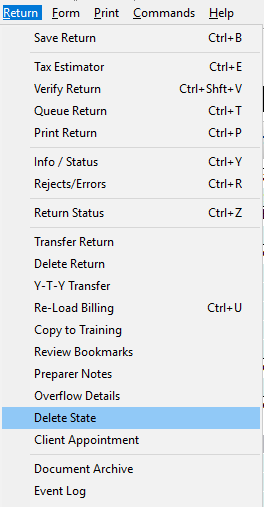
Method 1: Click Delete State from the Return menu.
- Open the tax return.
- On the Return menu, click Delete State.
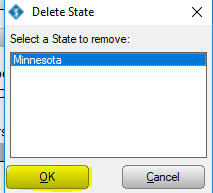
- Click the state you want to delete and then click OK.
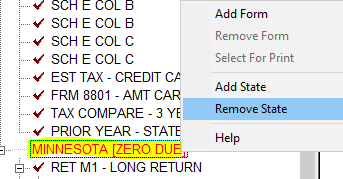
Method 2: Right-click the state return and select Remove State
- Open the tax return.
- In the Attached Forms section, right-click the state you want to delete, and then click Remove State.
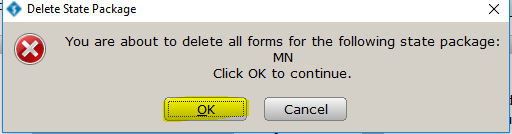
- Click OK on the Delete State Package dialog.

How to delete a tax return
How to delete a tax return
SUMMARY
This article demonstrates how to delete a tax return in Simple Tax 1040.
MORE INFORMATION
To delete a tax return in Simple Tax 1040, follow these steps:
- Open the tax return you want to delete.
- Remove all Social Security Numbers from the return. (Including Tax Payer, Spouse, and any Dependents)
- On the Return menu, click Delete Return.
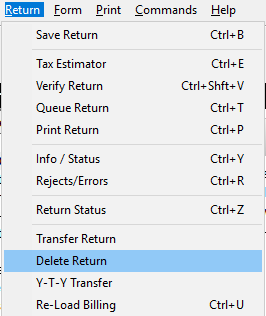
- In the Delete Return dialog appears, click Yes.
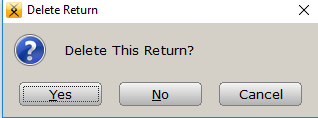
Note: Simple Tax 1040 does not provide support for deleting multiple tax returns at the same time. You must delete each tax return individually.
How to delete a form or worksheet
How to delete a form or worksheet
SUMMARY
This article demonstrates how to delete a form and all the supporting forms and worksheets associated with that form in Simple Tax 1040.
MORE INFORMATION
To delete a form or worksheet in Simple Tax 1040, follow these steps:
- In the Attached Forms pane, right-click the form or worksheet you want to delete and then click Remove Form.
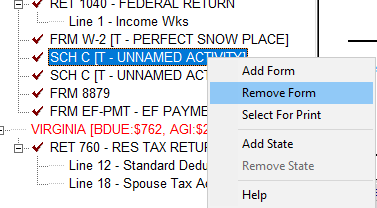
- When the Delete Form dialog appears, click OK to delete the form.
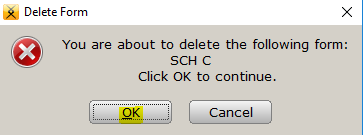
Note: Some forms have dependent forms associated with them. When you delete one of those forms, Simple Tax 1040 also deletes the associated forms.