
How to unlock your account after too many failed login attempts
The objective of this article is to walk you through on how to unlock your account after too many login attempts.
To unlock your account after too many login attempts please contact Technical Support at 281-833-9300 option 2 for support.
NOTE: To avoid locking yourself out after one failed login attempt use the FORGOT PASSWORD option to change your password and login to the software.

Login refused – serial changed” error message when transmitting to Central Site
Login refused – serial changed” error message when transmitting to Central Site
SYMPTOMS
When you transmit to Central Site, the following error message appears:
‘Login Refused Serial Changed’
CAUSE
You may receive this error message if any of the following conditions are true:
- Another computer has already transmitted to Central Site using the specified User ID.
- You are transmitting from a newly purchased computer.
RESOLUTION
When you transmit, Central Site assigns each transmitting computer a unique serial number. Central Site uses this serial number to prevent multiple stand-alone computers from transmitting to Central Site with the same User ID. If a user attempts to transmit to Central Site with multiple stand-alone computers using the same User ID, the message Login Refused Serial Changed appears.
There are circumstances in which users may want to transmit to Central Site with multiple stand-alone computers using the same User ID – for example, the customer purchased a new computer. You can use Reset Serial Number to workaround this issue.
Method 1: Verify the User ID
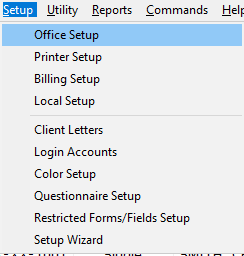
- On the Setup menu, click Office Setup.
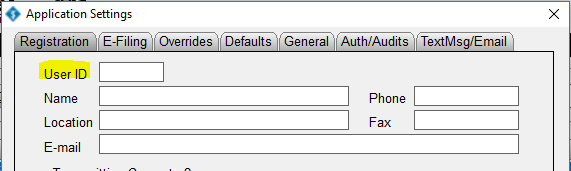
- Verify the correct User ID appears in the User ID box. If the correct ID does not appear, type the correct one.
Method 2: Contact SimpleTAX support to reset the computer’s serial number
- Please call (281) 833-9300, Option 2.
How to add a change a user’s password to login to Simple Tax 1040
SUMMARY
This article demonstrates how to add or change a user’s password.
MORE INFORMATION
Here's an interactive tutorial
Simple Tax 1040
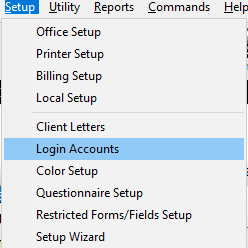
- On the Setup menu, click Login Accounts.
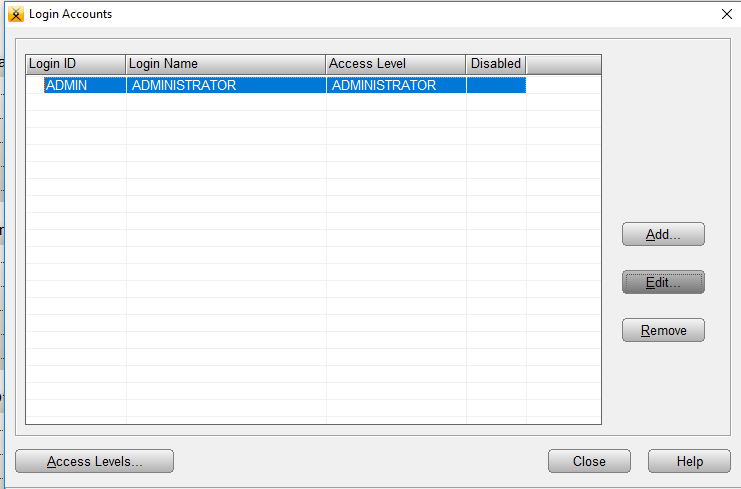
- Click the user you want to modify and then click Edit.
- In the Password box, type the new password and retype the same password in the Confirm Password box.
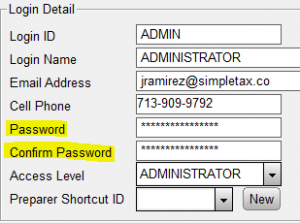
- Click OK.
How to add a login account to an access level
How to add a login account to an access level
SUMMARY
This article demonstrates how to add a Login Account to an Access Level.
MORE INFORMATION
Here's an interactive tutorial
Belonging to an Access Level gives a Login Account rights and abilities to perform various tasks within Simple TAX 1040. You can choose which rights and abilities a Login Account has by adding the Login Account to the appropriate Access Level.
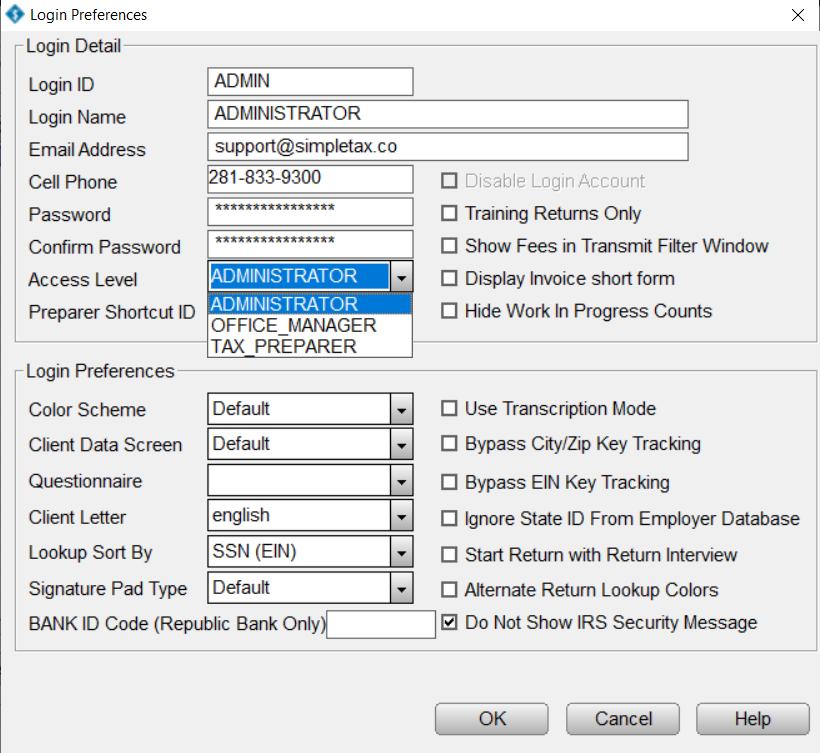
- On the Setup menu, click Login Accounts.
- In the Login Accounts box, click the Login Account you want to edit and then click Edit.
- In the Access Level list, choose the Access Level you want and then click OK.
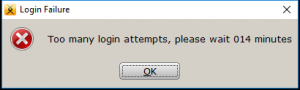
“Too Many Login Attempts, please wait 15 minutes”
After too many failed login attempts, the program will lock access for the login for 15 minutes as a security measure.
Method 1: Verify Login Information
- Verify login id is correct (If you know your login, but simply typed it incorrectly, try again.)
- Verify password is correct (If you know your password, but simply typed it incorrectly, wait 15 minutes and try again.)
Method 2: Reset Your Password
Note: This is password reset process will not work if you did not set an email address and/or a mobile number in the Login Account.
To reset your password, follow these steps:
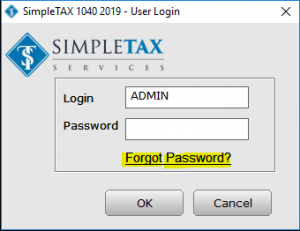
- On the User Login screen, enter the login name and click Forgot Password? link
- On the Reset Password box select where to send the password reset.
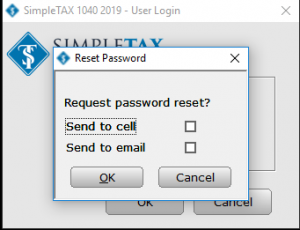
- A temporary password (Reset Online Code) will be sent to you via text message or email.
- Enter the temporary password in the Forgot Password box and create a new password.
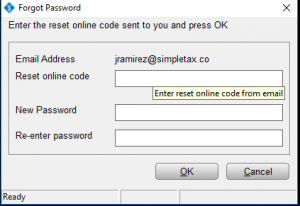
Note: Passwords must be no less than 8 characters, must include a capital letter, must include a lowercase letter, must include a number, and must include a special character (ie !, @, #, $)
Logging Into The Client Portal
Here's an interactive tutorial
- To access the SimpleTAX Client Portal click on the link below.
https://simpletax.mytaxofficeportal.com/
- To login to your Client Portal, enter the User ID provided to you via email from SimpleTAX Support and your password. Then click the login button.

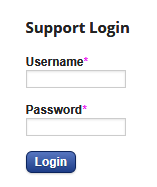
- If you don't know your password, click Forgot Password.

- If this is your first time logging in to the portal, click here to learn how to register your account.